Div 弹窗 · Div Popup · ▶ 在线运行案例
案例合集: 三维可视化功能案例(threehub.cn)
开源仓库github地址: https://github.com/z2586300277/three-cesium-examples
**400个案例代码: ** 网盘链接
你将学到什么
- preUpdate(相对 postRender 更早)同步 DOM 位置
- 简单 信息窗 / Tooltip 实现
- 坐标不可见时 display: none
效果说明
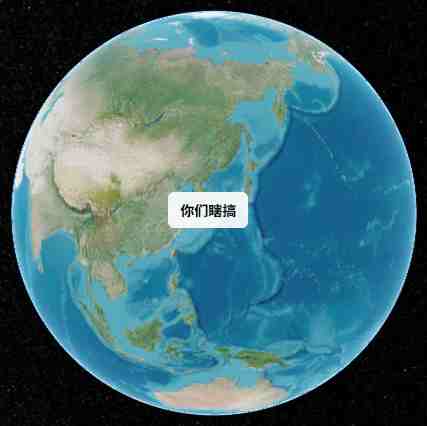
山东附近坐标 (118°, 37°) 处悬浮白底圆角 div,文字「你们瞎搞」,随相机转动始终锚定在对应地理位置。
核心概念
preUpdate vs postRender
| 事件 | 时机 |
|---|---|
| preUpdate | 场景更新前,适合跟实体同步 |
| postRender | 帧渲染后,CSS 元素 案例使用 |
两者都可配合 worldToWindowCoordinates。
最小实现
const el = document.createElement('div');
Object.assign(el.style, {
    position: 'absolute',
    backgroundColor: 'rgba(255,255,255,0.9)',
    padding: '8px 12px',
    borderRadius: '6px',
});
box.appendChild(el);

viewer.scene.preUpdate.addEventListener(updatePosition);

function updatePosition() {
    const coord = Cesium.SceneTransforms.worldToWindowCoordinates(
        viewer.scene,
        Cesium.Cartesian3.fromDegrees(118, 37, 1)
    );
    if (coord) {
        el.style.left = coord.x + 'px';
        el.style.top = coord.y + 'px';
        el.style.display = 'block';
    } else {
        el.style.display = 'none';
    }
}
::: tip 生产增强 可加 leader line、点击关闭、多弹窗管理器;复杂场景见 Cesium 社区 HtmlOverlay 插件。 :::
实现步骤
- 创建样式化 div append 到 Viewer 容器
flyTo初始定位preUpdate每帧投影更新 left/top- 根据业务动态改
innerHTML
代码要点
import * as Cesium from 'cesium'
const box = document.getElementById('box')
const viewer = new Cesium.Viewer(box, {
    animation: false, // 启用动画器件
    baseLayerPicker: false, // 是否显示图层选择器,右上角图层选择按钮
    baseLayer: Cesium.ImageryLayer.fromProviderAsync(Cesium.ArcGisMapServerImageryProvider.fromUrl(GLOBAL_CONFIG.getLayerUrl())),
    fullscreenButton: false, // 是否显示全屏按钮,右下角全屏选择按钮
    timeline: false, // 是否显示时间轴
    infoBox: false, // 是否显示信息框
})
// 隐藏Cesium Logo
viewer._cesiumWidget._creditContainer.style.display = "none";
// 启用地形深度测试,确保正确渲染
viewer.scene.globe.depthTestAgainstTerrain = false
/**
 * 设置相机初始视角
 * 将视角定位到飞行轨迹中心区域
 */
viewer.camera.flyTo({
    destination: Cesium.Cartesian3.fromDegrees(118, 37, 1000), // 目标位置
    duration: 0  // 飞行时间(秒)
})
// ==================== 弹窗元素创建区域 ====================
const trackInfoElement = document.createElement('div')
// 设置弹窗样式:白底黑字,带阴影和圆角
Object.assign(trackInfoElement.style, {
    backgroundColor: 'rgba(255, 255, 255, 0.9)', // 白色半透明背景
    color: 'black', // 黑色文字
    padding: '8px 12px', // 内边距
    borderRadius: '6px', // 圆角
    fontWeight: 'bold', // 粗体文字
    fontSize: '14px', // 字体大小
    position: 'absolute',
    textAlign: 'center',
    maxWidth: '100px' // 最小宽度
})
// 将弹窗元素添加到CSS容器中
box.appendChild(trackInfoElement)
// 监听场景更新事件
viewer.scene.preUpdate.addEventListener(updateTrackInfoPosition)
// ==================== 弹窗更新逻辑区域 ====================
function updateTrackInfoPosition() {
    // 将地球上的三维位置转换为屏幕坐标
    const windowCoord = Cesium.SceneTransforms.worldToWindowCoordinates(
        viewer.scene,      // 场景对象
        Cesium.Cartesian3.fromDegrees(118, 37, 1)    // 世界坐标
    )
    // 如果坐标转换成功,更新弹窗位置和内容
    if (windowCoord) {
        // 设置弹窗在屏幕上的位置
        trackInfoElement.style.left = windowCoord.x + 'px'
        trackInfoElement.style.top = windowCoord.y + 'px'
        trackInfoElement.style.display = 'block'
        // 更新弹窗内容,显示实时位置信息
        trackInfoElement.innerHTML = '你们瞎搞'
    } else {
        // 坐标转换失败时隐藏弹窗
        trackInfoElement.style.display = 'none'
    }
}
完整源码:GitHub
小结
- 本文提供 Div 弹窗 完整 Cesium.js 源码与在线 Demo,建议先运行案例再改 uniform/参数做二次实验
- 更多 Cesium.js 实战案例见 three-cesium-examples 合集 与 GitHub 开源仓库